بِسْمِ ٱللَّٰهِ ٱلرَّحْمَٰنِ ٱلرَّحِيمِ | বিসমিল্লাহির রাহমানির রাহিম

How to Install WordPress on Localhost with XAMPP (2025 Guide)
How to Install WordPress on Localhost with XAMPP (2025 Guide)
If you’re new to WordPress and want to practice before launching a live website, learning how to install WordPress on localhost with XAMPP is the perfect way to start. This guide will walk you through every step of the process in 2025.
By the end of this article, you’ll be able to set up your own local WordPress environment and design websites without buying hosting or a domain.
Why Install WordPress on Localhost with XAMPP?
Installing WordPress on localhost has become one of the most popular methods for beginners and developers. It allows you to work privately on your own computer before making a site live.
Here are the main reasons to install WordPress on localhost:
- ✅ Practice web design and development for free.
- ✅ Test themes and plugins safely.
- ✅ Build websites offline without internet access.
- ✅ Migrate your local site to live hosting later.
Step 1: Download and Install XAMPP
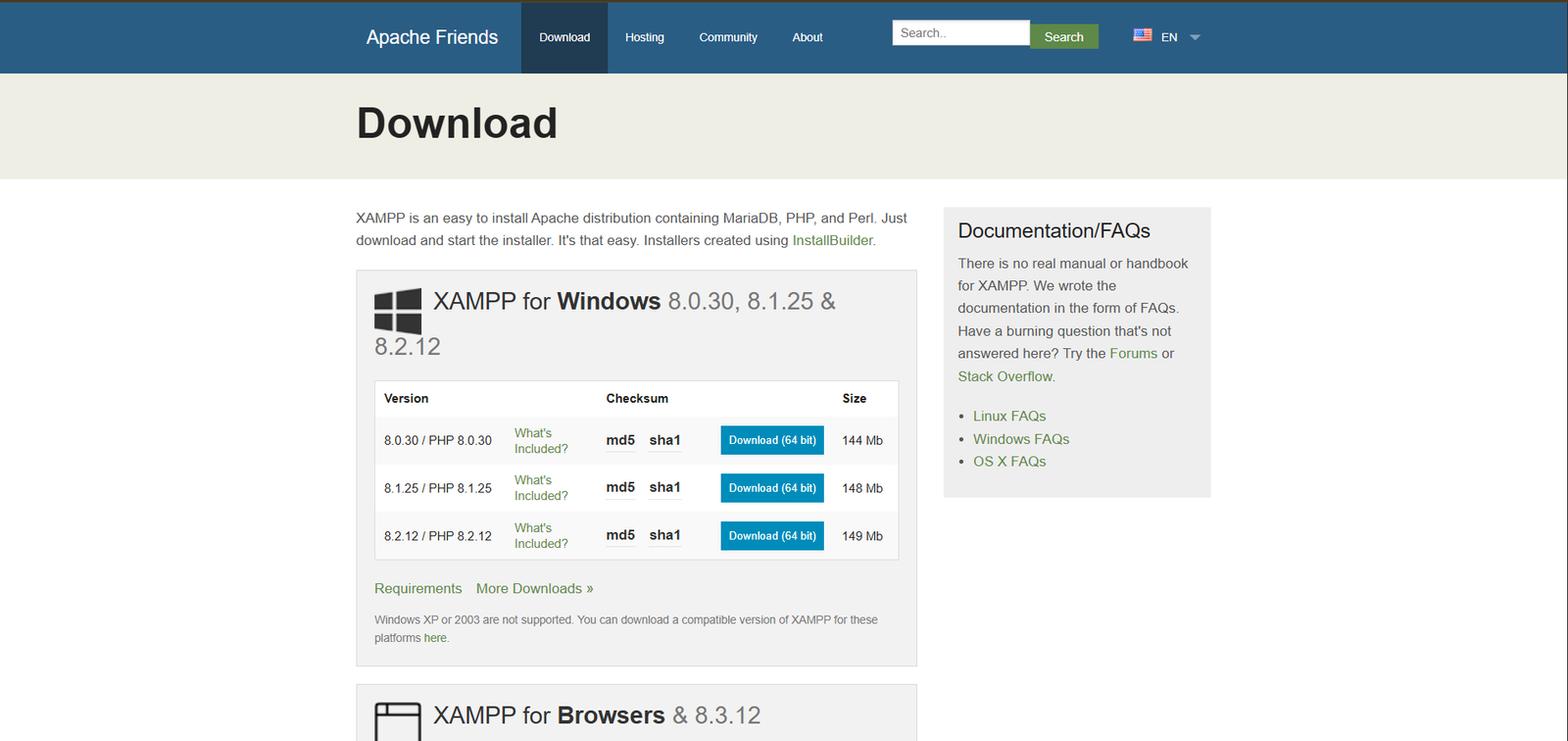
To start, you need to install XAMPP, a free and open-source local server solution.
- Visit Xampp Official Website
- Download the latest version of XAMPP for your operating system (Windows, macOS, or Linux).
- Install XAMPP and open the XAMPP Control Panel.
- Start Apache and MySQL services.
💡 If Apache fails to start, change the port from 80 to 8080 in the XAMPP configuration.
Step 2: Create a Database in phpMyAdmin
Once XAMPP is running, you’ll need a database for your WordPress installation.
- Open your browser and go to localhost/phpmyadmin/.
- Click on Databases in the top menu.
- Enter a database name (e.g.,
wordpress2025). - Click Create.
This database will store all your WordPress content, settings, and configurations.
Step 3: Download and Extract WordPress
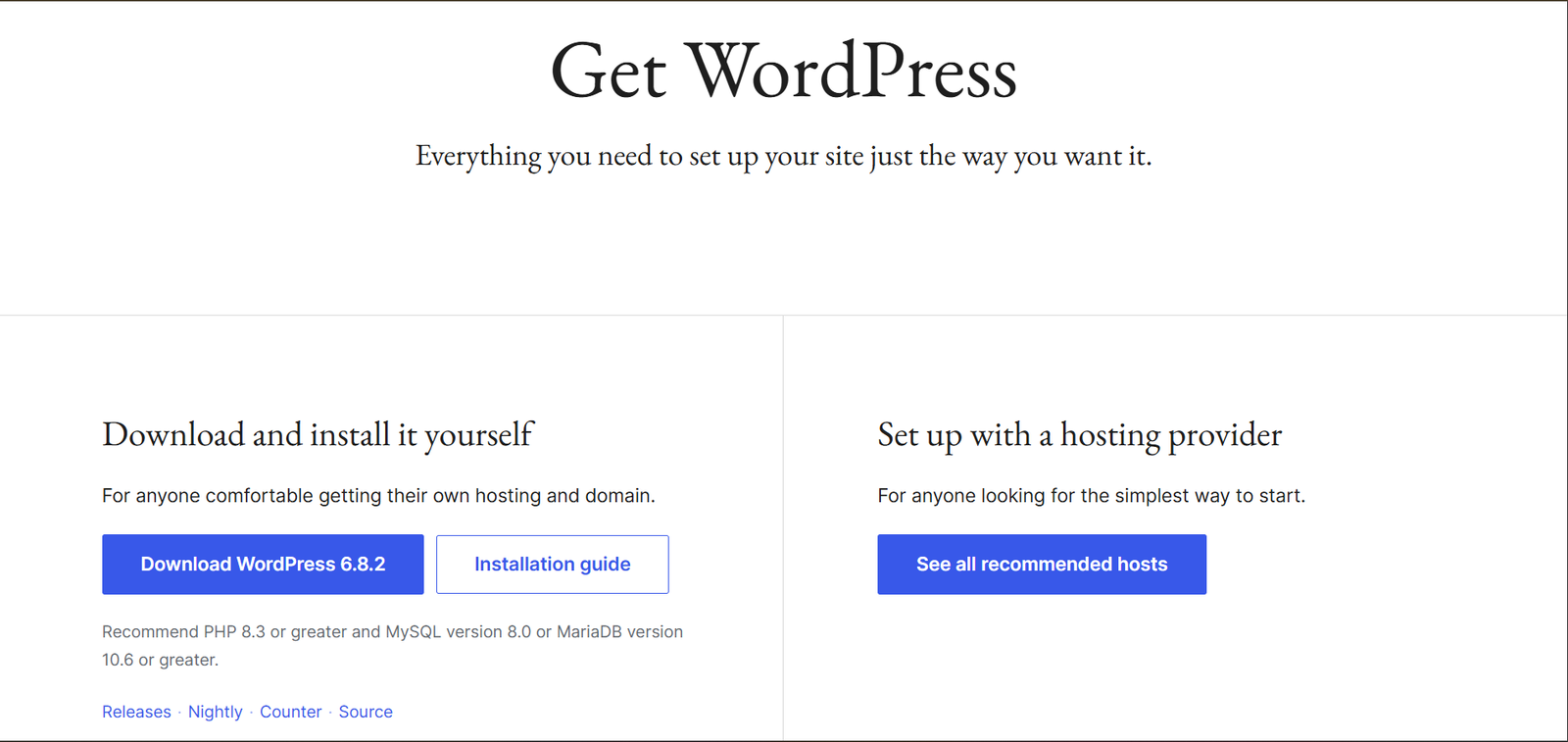
Check this file location C:\xampp\htdocs\
Rename the folder to something like mywebsite.
Step 4: Install WordPress on Localhost
Open your browser and type: http://localhost/mywebsite/
Select your preferred language and click Continue.
Fill in the database details:
- Database Name:
wordpress2025 - Username:
root - Password: (leave blank)
- Database Host:
localhost
Click Submit and then Run Installation.
Step 5: Configure WordPress Settings
During installation, WordPress will ask for basic information about your site:
- Site Title: Example Website
- Username: admin
- Password: ********
- Email: yourname@email.com
Click Install WordPress, and within seconds, your local WordPress site will be ready.
You can log in at: http://localhost/mywebsite/wp-admin/
🎉 Congratulations! You’ve successfully installed WordPress on localhost using XAMPP.
Troubleshooting Common Issues
Even though the process is simple, sometimes errors can appear when you try to install WordPress on localhost. Here are quick fixes:
- ❌ Apache Not Starting → Change port from 80 to 8080 in XAMPP settings.
- ❌ MySQL Not Starting → Stop other SQL services running in the background.
- ❌ Error Establishing a Database Connection → Double-check your database name and credentials.
Frequently Asked Questions (FAQs)
1. Can I run multiple WordPress sites on localhost?
Yes. Simply create a new database for each site and add a new folder inside htdocs.
2. Is localhost WordPress the same as live hosting?
Functionally yes, but your local site is only visible to you. A live hosting site is accessible worldwide.
3. How do I move my localhost site online?
You can migrate your local WordPress site using plugins like All-in-One WP Migration or Duplicator.
4. Can I use localhost for client projects?
Yes, you can design sites locally, then migrate them to the client’s live hosting when ready.
Internal Resources
👉 Want to build a professional WordPress website? Check out our guide at Web Techiq for complete WordPress solutions.
Conclusion
Learning how to install WordPress on localhost with XAMPP is a must for beginners and developers in 2025. It allows you to practice safely, experiment with themes and plugins, and create websites without spending money on hosting.
Once your site is ready, you can easily move it online for the world to see. Start practicing today and take your web development skills to the next level!
 USA -Dollar
  Bangladeshi -TK